Write your own prompts, choose your AI model, and generate listing content in your voice — across your entire shop at once.
Vela's AI tools are built around one idea: you decide what good output looks like. Write your own prompts, choose from a range of AI models, and generate titles, descriptions, and other content that sounds like your shop. Marketplace-tuned default prompts are ready on day one, so there's a strong starting point before you customize anything.
These capabilities run through four parts of Vela: the bulk editor, AI Profiles, the Sandbox, and the Prompt Manager. This article covers all four.
How to...
- Find the AI tools
- Optimize listings in the bulk editor
- Choose a prompt: default vs. custom
- Create a custom prompt
- Review results: retry, revert, keep, sync
- Scale with AI Profiles
- Compare prompts and models in the Sandbox
- Organize prompts in the Prompt Manager
- Troubleshooting
1. Find the AI tools
AI shows up in three places:
- The bulk editor. Select listings and click Edit. Attributes with AI capabilities are highlighted and appear at the top of the sidebar. All the standard bulk editing features you rely on are still available below them.
- The Profiles tab. Your profiles are now split into two tabs: AI and Standard. Your existing profiles live under Standard and work exactly as before.
- The AI section in the sidebar. A new section on the main dashboard holds the Sandbox and the Prompt Manager.
2. Optimize listings in the bulk editor
The fastest way to try AI in Vela is a one-time bulk optimization. The steps below use an Etsy shop and title optimization, but the flow is the same for any connected marketplace and any AI-enabled attribute.
- From the main listings dashboard, select the listings you want to bulk edit.
- Click Edit to open the bulk editor.
- Choose an AI-enabled attribute from the top of the sidebar — Title, in this case.
- Choose a prompt from the dropdown. Vela's default prompt is selected out of the box (more on prompts in the next section).
- Choose a model, or keep the default.
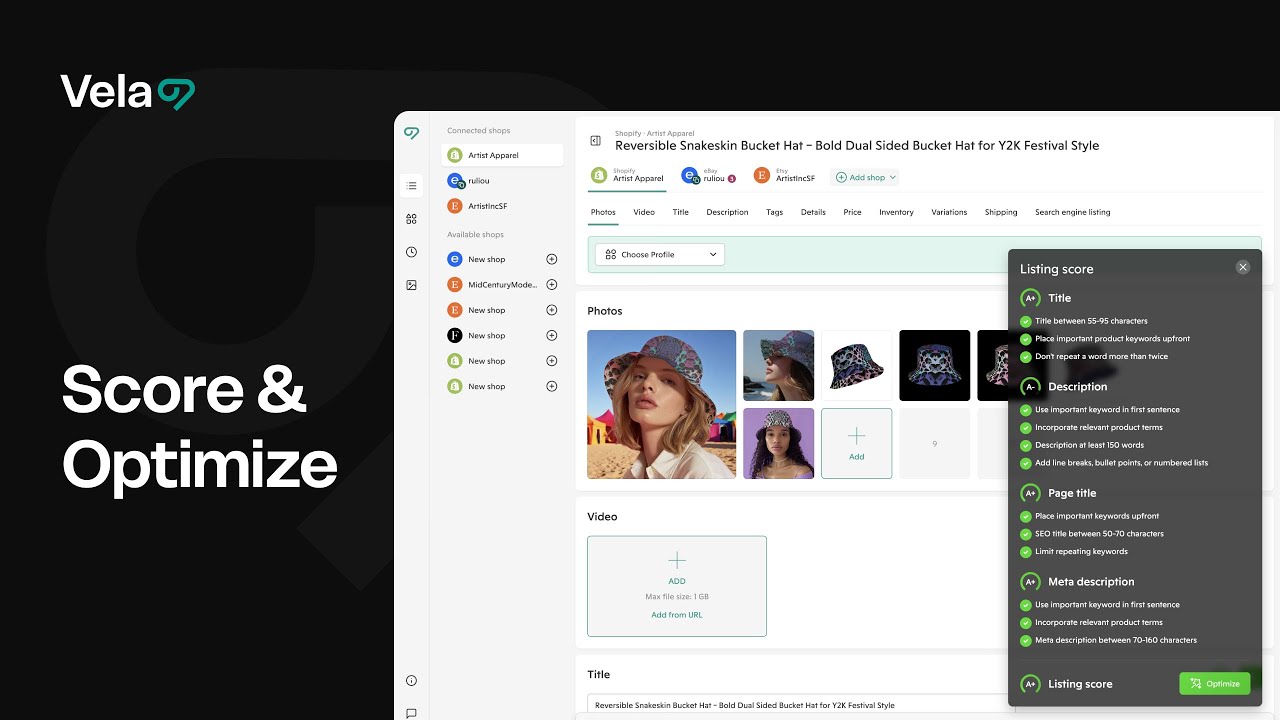
- Run the optimization. Vela generates a new value for each selected listing, along with an optimization score, so you can review results side by side with your originals.
3. Choose a prompt: default vs. custom
Every AI attribute runs on a prompt — the instructions that tell the model what to write and how to write it. Vela's defaults get you strong results immediately; custom prompts are where you shape the output to match your shop.
| Default prompt | Custom prompt | |
|---|---|---|
| Setup | None. Ready to use from day one. | Write your own instructions and save them. |
| Tuning | Tailored to each marketplace, with scoring criteria designed to produce the optimal content for the channel you're selling on. | Full control over voice, structure, and rules. |
| Scoring | Calibrated against Vela's marketplace-specific criteria. | May produce different optimization scores than the default (see the note below). |
| Best for | Getting strong results immediately; sellers who don't want to write prompts. | Shops with an established voice, niche products, or specific formatting requirements. |
4. Create a custom prompt
To tailor the output to your own style — your voice, your structure, your rules:
- In the prompt dropdown (from the bulk editor, an AI Profile, or the Prompt Manager), choose Create custom prompt.
- Drop in your instructions.
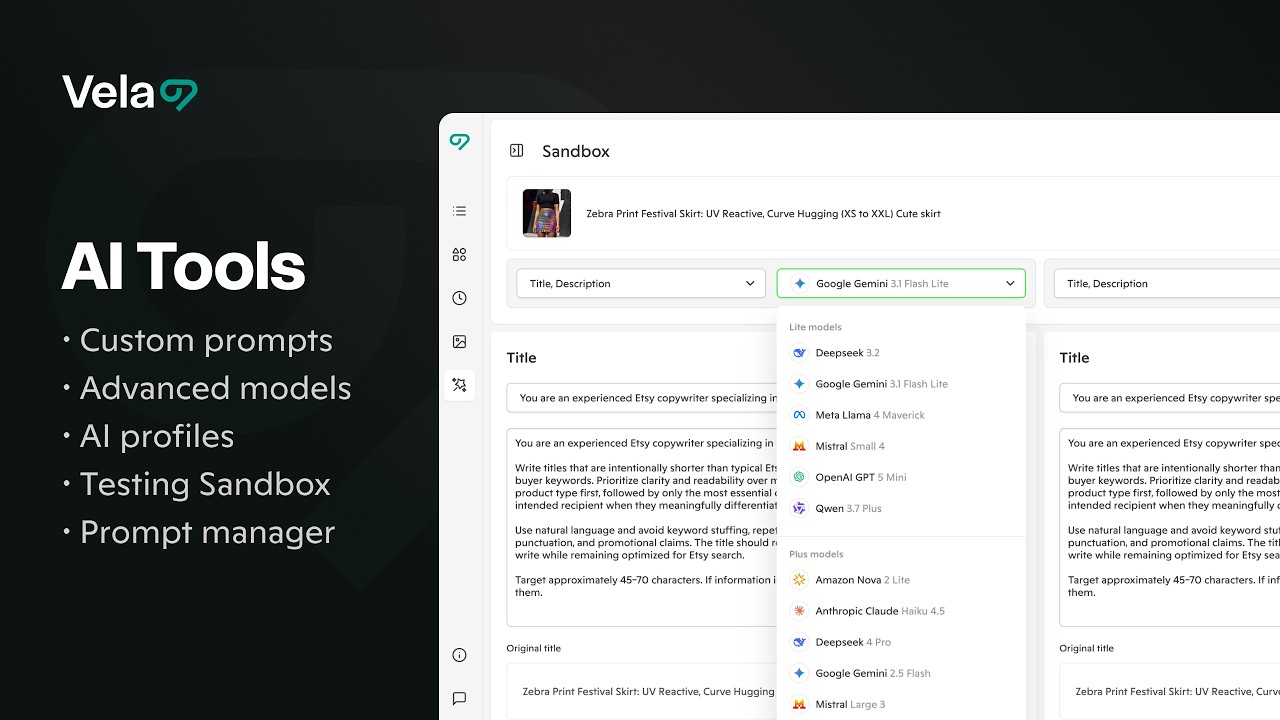
- Choose your preferred AI model. Models are grouped by tier — Lite models are fast and economical for high-volume runs, while Plus models offer more capability for nuanced writing.
- Click Save Prompt.
Your custom prompt is added to the dropdown, where you can select it at any time — in the bulk editor, in AI Profiles, and in the Sandbox.
Writing prompts that work
The same principles behind Vela's defaults apply to your own prompts:
- Lead with the role and the marketplace. "You are an experienced Etsy copywriter" focuses the model better than a bare list of rules.
- State your structure. For titles: put the product type first, followed by only the most essential details.
- Set concrete limits. A target like "approximately 45–70 characters" beats "keep it short."
- Say what to avoid. Keyword stuffing, repetitive phrasing, promotional claims, and excessive punctuation are worth ruling out explicitly.
- Test before you roll out. Run the prompt against a few representative listings in the Sandbox before applying it to hundreds.
5. Review results: retry, revert, keep, sync
Every AI run gives you a full review pass before anything reaches your shop:
- Edit and retry. If the results aren't quite right, adjust the prompt or your selection and run it again.
- Revert. Restore your previous titles (or descriptions, or any other attribute) at any point.
- Keep. When you're happy with the results, click Keep to accept them in Vela.
- Sync Updates. Click Sync Updates to apply the kept changes to your marketplace.
6. Scale with AI Profiles
Bulk edits are one-time runs. AI Profiles make AI part of how your shop operates.
Open the Profiles tab and you'll see your AI profiles displayed, with your existing profiles still available under the Standard tab. The two types solve different problems:
| Standard Profiles | AI Profiles | |
|---|---|---|
| What they set | Shared values applied identically to every connected listing. | Prompts and AI-powered attributes applied across any number of listings. |
| Output | The same value everywhere. | Unique titles, descriptions, and other content generated for each connected listing. |
| Best for | Pricing, shipping, returns — anything that should match across listings. | Titles, descriptions, and other content that must be distinct per listing. |
Because an AI Profile stores the prompt and model rather than a fixed value, updating your shop for holidays, sales, or seasonal events is as simple as changing a prompt or switching models — every connected listing regenerates with content unique to that listing.
Set one up:
- From the Profiles tab, open AI and create a new profile.
- Choose the AI-powered attributes to manage (Title, Description, and so on).
- Select a prompt and model — Vela's default or one of your custom prompts.
- Connect your listings, review the generated results, then keep and sync as usual.
7. Compare prompts and models in the Sandbox
The Sandbox lets you compare prompts and models on the same listing, side by side. Pick a listing, set a prompt and model on each side, and generate — same input, different configuration, results next to each other.
Use it to answer questions before they cost you a bulk run:
- Does my custom prompt actually beat the default for my products?
- Is a Plus model worth it for my descriptions, or does a Lite model hold up?
- How does my holiday prompt read against my everyday one?
A few minutes in the Sandbox on one or two representative listings tells you more than re-running a 300-listing batch ever will.
8. Organize prompts in the Prompt Manager
The Prompt Manager gives you one place to create, edit, and organize your saved prompts. Every prompt you save — from the bulk editor, an AI Profile, or the Manager itself — lives here, and edits made here flow through to the dropdowns everywhere prompts are used.
As your library grows (a spring prompt, a holiday prompt, a per-collection voice), this is where you keep it tidy.
9. Troubleshooting
If the AI tools aren't behaving the way you expect, the usual suspects are prompt setup or sync timing. Here's a walkthrough of the common ones.
My custom prompt scores lower than the default
Expected in many cases. Scoring criteria are tailored to each marketplace and calibrated against Vela's default prompts. If your custom prompt intentionally departs from those conventions, judge the output on your own standards — the score is one input, not a verdict. To improve the score while keeping your voice, compare your prompt against the default in the Sandbox and borrow the structural rules (product type first, natural language, no keyword stuffing) while keeping your styling.
Optimized content isn't showing up on my marketplace
A few things to check:
- Confirm you clicked Keep on the results, then Sync Updates. Kept-but-unsynced changes stay in Vela.
- Give the sync a minute or two — larger batches take longer as the marketplace processes the updates.
- Refresh the listing page in a fresh browser tab. A cached version sometimes doesn't reflect the update right away.
- Click Refresh Shop from the main listings dashboard to pull the latest state.
- If it's been more than 24 hours, reach out through the chat window at the bottom right of the dashboard, and we'll investigate.
The results feel repetitive or generic
- Try a different model — the Sandbox makes this a two-minute test.
- Tighten the prompt: name your product niche, your buyer, and your voice. Generic instructions produce generic copy.
- Run smaller, more focused batches (one collection at a time) so the prompt's context fits the products.
I want my old titles back
Click Revert on the run to restore your previous values. If you've already synced, revert and sync again to push the originals back to your marketplace.
Learn more: Profiles Overview